Add a New Server
Adding a new PostgreSQL server to PMP4PG involves two steps: generating a registration token in the platform, then deploying and registering an agent on that server.
This page gives a high-level overview. For the complete step-by-step procedure with all configuration details, see Enroll a New Server →.
Overview
1. Authenticate as ADMIN and generate a registration token
         ↓
2. Prepare the PostgreSQL server (monitoring user)
         ↓
3. Install the PMP4PG Agent (RPM or DEB)
         ↓
4. Configure the agent (token + connection settings)
         ↓
5. Start the agent — registration runs automatically
         ↓
6. Copy credentials back into agent.conf and restart
         ↓
7. The server appears in the Global Dashboard
Step 1 — Generate a Registration Token
A registration token is a single-use credential that authorizes an agent to register itself with the PMP4PG backend. Only an ADMIN user can generate one.
curl -X POST http://<BACKEND_HOST>:8080/pmp/api/admin/registration-tokens/generate \
  -H "Content-Type: application/json" \
  -H "Authorization: Bearer <JWT_TOKEN>" \
  -d '{
    "siteCode": "PAR01",
    "description": "Token for new prod server",
    "expiresInHours": 5,
    "maxUses": 1
  }'
Copy this token immediately — it is displayed only once. Each token is valid for a single registration and expires after the configured number of hours.
Step 2 — Prepare the Target PostgreSQL Server
On the PostgreSQL server you want to monitor, create the monitoring user and ensure pg_stat_statements is enabled.
sudo -u postgres psql

CREATE USER pmp4pg WITH PASSWORD 'your_secure_password';
GRANT pg_monitor TO pmp4pg;
GRANT CONNECT ON DATABASE postgres TO pmp4pg;
GRANT SELECT ON pg_stat_statements TO pmp4pg;

\q
See Enroll a New Server — Step 2 → for both Password and PEER authentication options, and for enabling pg_stat_statements.
Step 3 — Install and Configure the Agent
Install the agent package matching your OS family:
# Red Hat family
rpm -ivh pmp4pg-agent-1.0.0-1.x86_64.rpm

# Debian family
dpkg -i pmp4pg-agent_1.0.0-1_amd64.deb
Edit /etc/pmp4pg/agent.conf — set the PostgreSQL connection, the backend URL and the registration_token generated in Step 1:
agent:
  registration_token: "PASTE_TOKEN_HERE"

postgresql:
  host: "localhost"
  port: 5432
  user: "pmp4pg"
  password: "your_secure_password"

server:
  environment: "RUN"   # RUN, DR or BUILD

backend:
  url: "http://<BACKEND_HOST>:8080/pmp"
See Agent Configuration → for the full reference of every parameter.
Step 4 — Start the Agent and Complete Registration
systemctl enable --now pmp4pg-agent
On first start with a valid registration_token, the agent automatically registers itself with the backend and prints the assigned agent.id, api_key and server.id to the log:
tail -f /var/log/pmp4pg/agent.log
Copy these values back into agent.conf, clear the registration_token, then restart the agent:
systemctl restart pmp4pg-agent
See Enroll a New Server — Steps 5–7 → for the full procedure with example log output.
Step 5 — Verify in the Dashboard
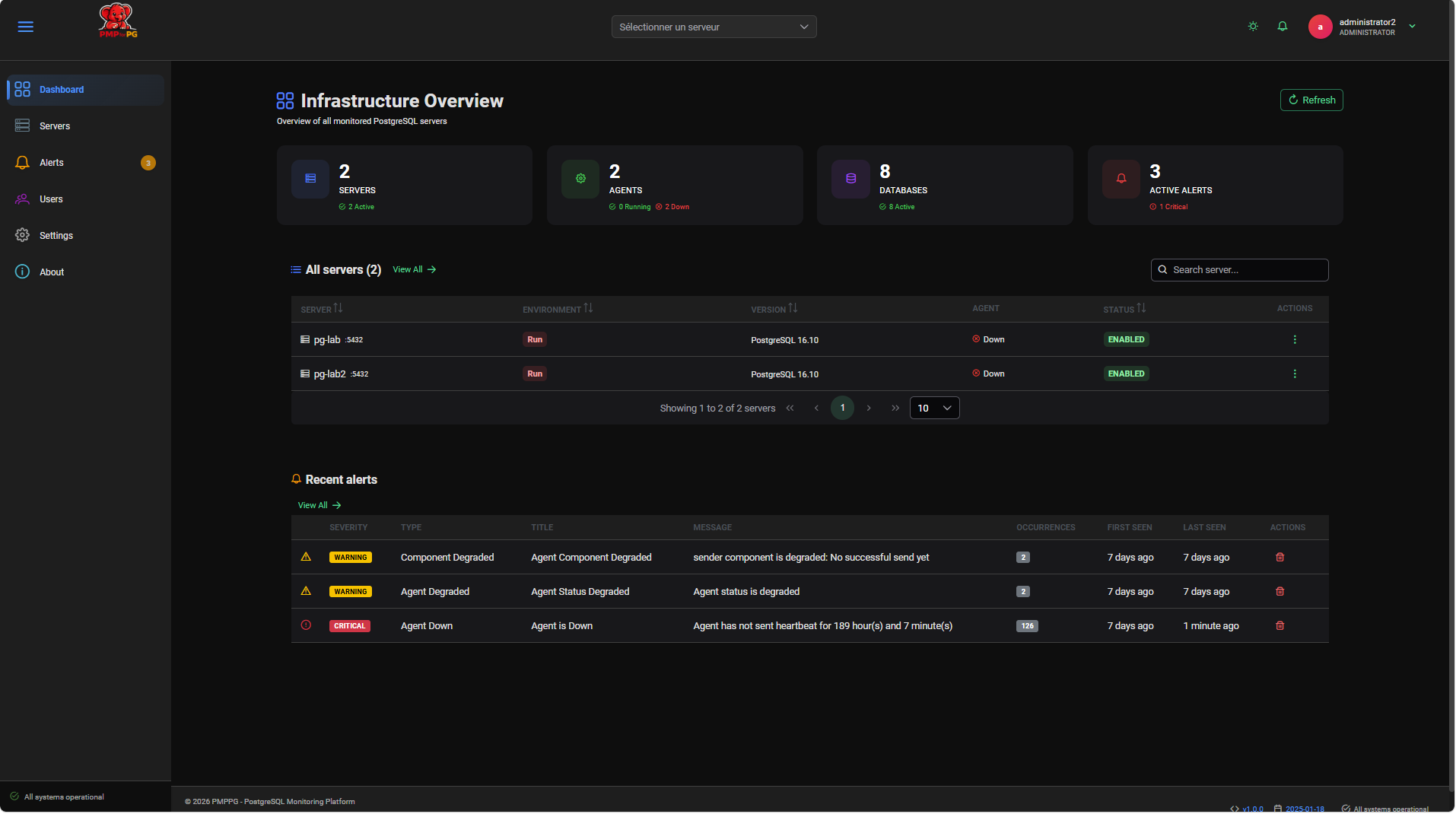
Within 30 seconds, the new server appears in the Global Dashboard with Agent status RUNNING and Status ENABLED.